The Challenge: Agent Communication Breakdown
After successfully installing the Wazuh manager and deploying my first agent on a Kali Linux VM, I was eager to dive into File Integrity Monitoring (FIM). However, I immediately encountered a critical issue: my Kali agent couldn't communicate with the Wazuh manager. What followed was a systematic debugging process that taught me more about network security and SIEM architecture than any documentation could.
The symptoms were clear—the agent showed as "disconnected" in the dashboard—but the root cause turned out to be a chain of interconnected problems that needed to be resolved sequentially.
Debugging the Agent-Manager Connection
Stage 1: Firewall Not Enforcing Rules
Symptom: Agent logs showed unable to connect to... 1514/tcp
Root Cause: While I had added firewall rules on the manager, UFW (Uncomplicated Firewall) wasn't actually active, meaning the rules weren't being enforced.
Resolution: I activated UFW on the SIEM server and explicitly allowed the critical ports:
- Port 1514 (agent communication)
- Port 1515 (agent enrollment)
- Port 443 (web dashboard)
sudo ufw enable
sudo ufw allow 1514/tcp
sudo ufw allow 1515/tcp
sudo ufw allow 443/tcp
Stage 2: Enrollment Service Unreachable
Symptom: Agent logs displayed Unable to connect to enrollment service at... 1515
Root Cause: The agent failed its initial key exchange because port 1515 was blocked or the manager wasn't listening on that port when I initially configured the agent.
Resolution: I verified that port 1515 was open and confirmed the manager was actively listening:
sudo ufw status
sudo netstat -tlnp | grep 1515
Stage 3: Virtual Network Isolation
Symptom: Network connectivity test using nc -vz <manager-ip> 1514 failed with "Network is unreachable" or "Connection timed out"
Root Cause: The UTM virtualization layer had lost the routing path between my Kali VM and the SIEM server VM. This is a common issue with virtualized environments where the virtual network stack can become corrupted.
Resolution: I gracefully shut down both VMs and restarted the entire UTM environment to reset the virtual network stack. Upon reboot, connectivity was restored.
Stage 4: Stale Agent Keys
Symptom: Manager logs showed "Valid key received," but the agent still wouldn't connect properly
Root Cause: The agent was using an old or corrupted key and wasn't automatically re-enrolling with the corrected network configuration.
Resolution: I performed a clean re-enrollment:
- Deleted the old agent ID on the manager
- Ran
agent-authon the Kali VM to force a fresh key exchange - Verified the agent showed "Active" status in the dashboard
Finally, after resolving this chain of issues, my agent was communicating successfully with the manager. I could now proceed with File Integrity Monitoring.
Understanding File Integrity Monitoring
File Integrity Monitoring (FIM) is a critical security control that detects unauthorized changes to files and directories. Wazuh's FIM implementation works by monitoring selected directories and files for changes to their attributes, including:
- Checksum (hash values: MD5, SHA1, SHA256)
- File permissions
- Ownership (user and group)
- Creation and modification timestamps
How Wazuh FIM Works
- Baseline Creation: When the Wazuh agent starts, it calculates a unique checksum (SHA256) for all configured files and sends this baseline to the manager.
- Continuous Monitoring: The agent monitors these files in real-time. Any detected change triggers a new hash calculation and comparison against the baseline.
- Alert Generation: If the checksum changes (or if permissions/ownership change), the agent sends a detailed event to the manager, which generates an alert in the Wazuh dashboard.
FIM is controlled by the <syscheck> section in the agent's configuration file located at /var/ossec/etc/ossec.conf.
Testing File Integrity Monitoring
By default, Wazuh agents monitor critical system directories such as /etc, /bin, and /sbin. I decided to test FIM by creating and modifying a file in the /etc directory on my Kali agent.
Initial Test: The 12-Hour Scan Cycle Problem
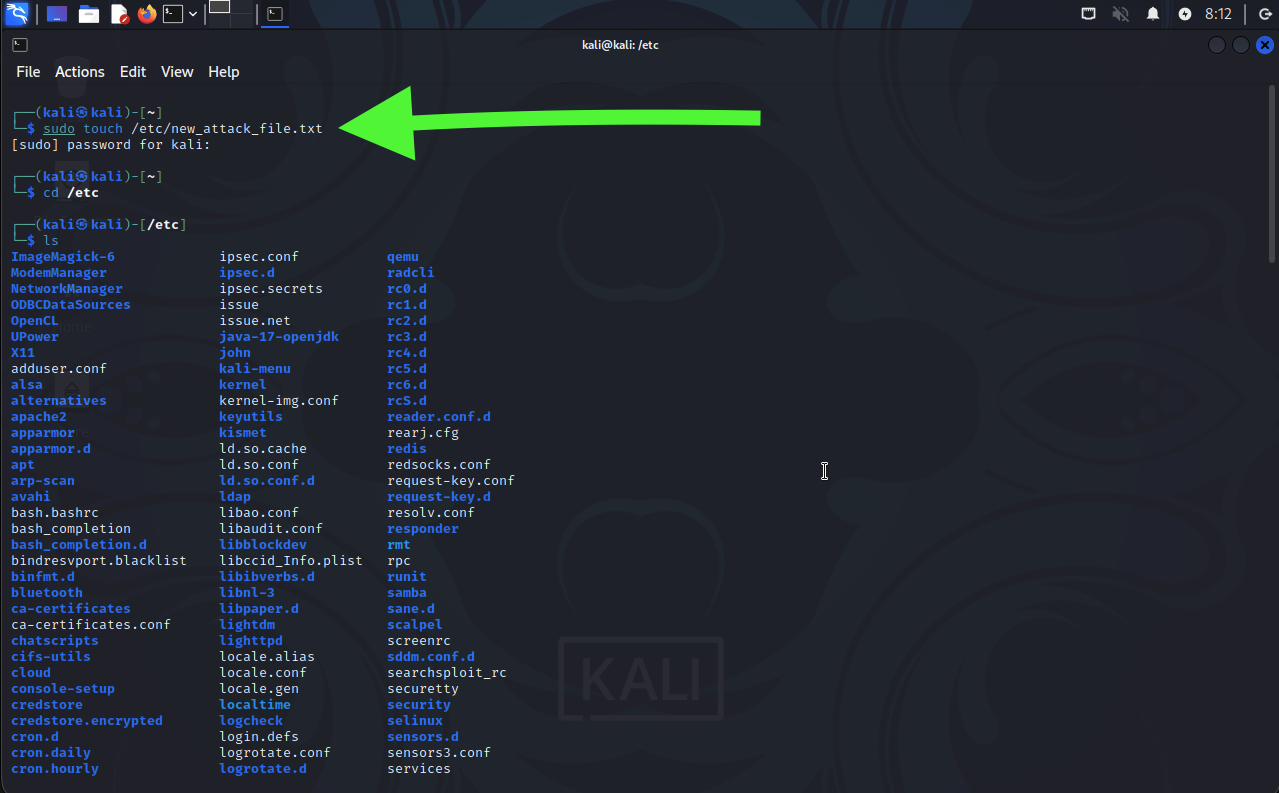
I created a test file in the monitored directory:
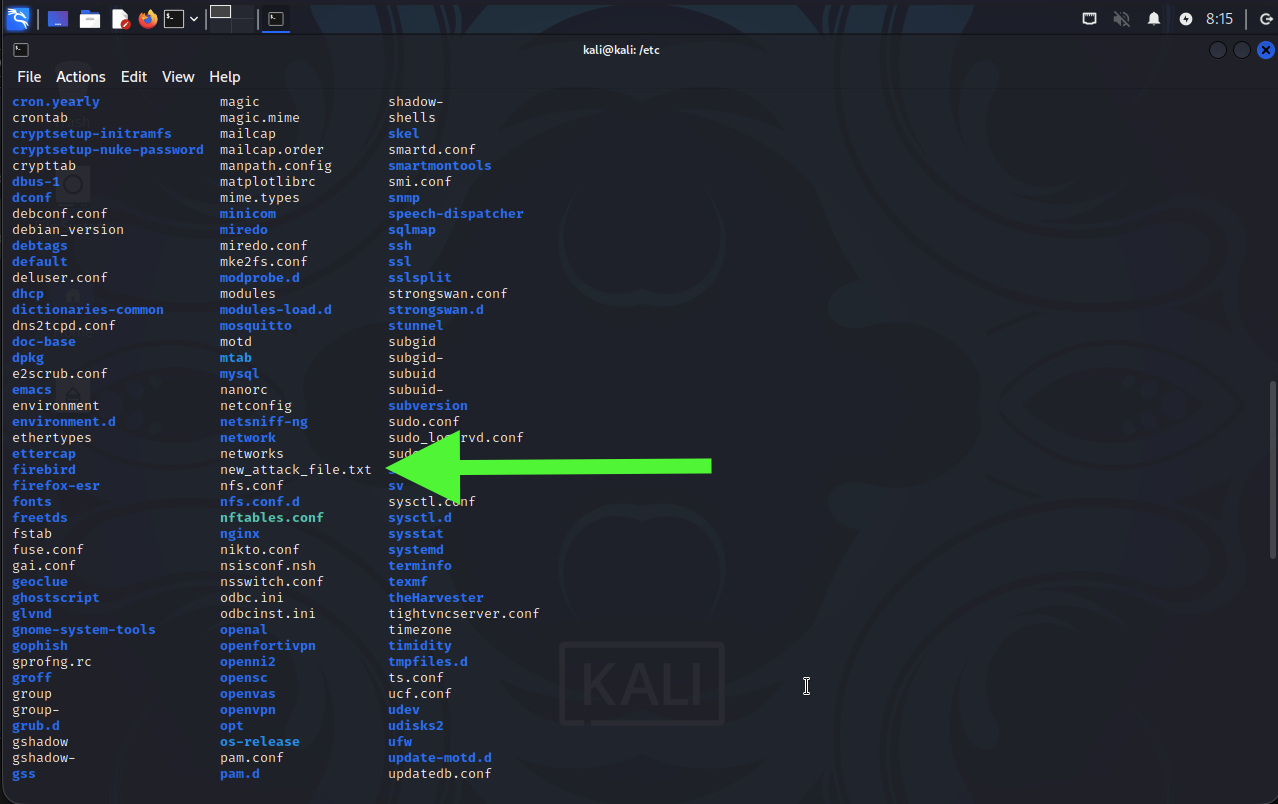
sudo touch /etc/new_attack_file.txt
I expected to see an immediate alert in the Wazuh dashboard, but nothing appeared. This led me to discover an important aspect of Wazuh's FIM architecture.
The Issue: Wazuh's FIM operates in two modes:
- Real-time Monitoring (inotify): Near-instantaneous detection (sub-second), but only for files that already existed when the agent started or files explicitly configured for real-time monitoring.
- Scheduled Scans: Full integrity scans of all configured directories run at scheduled intervals—by default, every 12 hours.
Since **/etc/new_attack_file.txt **didn't exist during the last scan cycle, it wouldn't be detected until the next scheduled scan. For a production environment, this might be acceptable, but for my homelab testing, waiting 12 hours wasn't practical.
Forcing an Immediate Scan
I restarted the agent to trigger an immediate FIM scan:
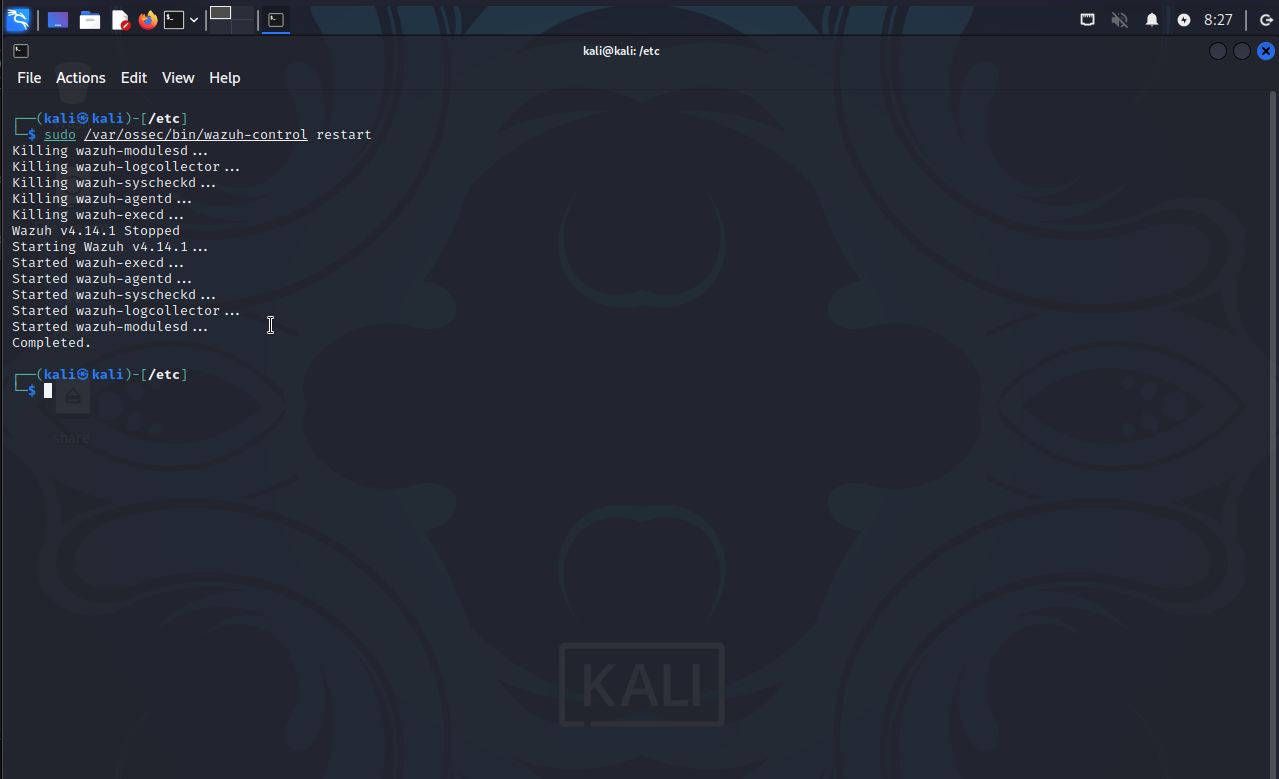
sudo /var/ossec/bin/wazuh-control restart
This forces the syscheck process to run a new scan immediately upon restart. I waited 15 seconds for the scan to complete, but still saw no alert.
I then modified the file and restarted again:
echo "Malicious content added" | sudo tee -a /etc/new_attack_file.txt
sudo /var/ossec/bin/wazuh-control restart
After waiting 30 seconds, I checked the Wazuh dashboard's "Inventory" tab instead of the "Events" tab. I searched for /etc/new_attack_file.txt and found it listed among 6,803 monitored files.
Critical Discovery: The FIM module was working correctly—it had detected and inventoried the file—but the manager wasn't generating high-severity alerts for it.
Configuring FIM for High-Severity Alerts
Through research, I discovered that Wazuh, by default, detects file creation in monitored directories but doesn't generate high-severity alerts (Rule 550) for new files in common system directories like /etc. This design prevents alert fatigue from routine administrative tasks.
To ensure all FIM events trigger appropriate alerts, I needed to enable the report_changes option in the agent configuration.
Enabling Report Changes
I edited the agent configuration on my Kali VM:
sudo nano /var/ossec/etc/ossec.conf
I located the <directories> block for /etc, which originally looked like:
<directories>/etc,/usr/bin,/usr/sbin</directories>
I modified it to:
<directories check_all="yes" report_changes="yes">/etc,/usr/bin,/usr/sbin</directories>
After restarting the agent, I modified the file again:
echo "Second malicious line added after FIM config fix" | sudo tee -a /etc/new_attack_file.txt
sudo /var/ossec/bin/wazuh-control restart
I waited 30 seconds, then checked the Wazuh dashboard with the filter: agent.id: 002 AND rule.groups: syscheck
Still, no event appeared.
Advanced Debugging: Analyzing Agent Logs
I examined the agent logs to understand what was happening:
sudo tail -n 30 /var/ossec/logs/ossec.log | grep -i 'syscheckd'
```

The output confirmed the FIM module was running and completing scans:
```
2025/11/17 18:14:11 wazuh-syscheckd: INFO: (6000): Starting daemon...
2025/11/17 18:14:11 wazuh-syscheckd: INFO: (6010): File integrity monitoring scan frequency: 43200 seconds
2025/11/17 18:14:11 wazuh-syscheckd: INFO: (6008): File integrity monitoring scan started.
2025/11/17 18:16:05 wazuh-syscheckd: INFO: (6009): File integrity monitoring scan ended.
However, there was no log entry showing the agent detected the change to /etc/new_attack_file.txt or queued an event to the manager. Since the file was in the inventory and scans were completing, the most likely issue was that real-time change detection wasn't properly configured.
Enabling Real-Time Monitoring with Whodata
I decided to enhance the FIM configuration by separating the /etc directory into its own block and enabling both real-time monitoring and whodata.
Whodata is particularly valuable because it captures forensic details about file changes, including:
- Which user made the change
- User ID and Group ID
- Process that modified the file
- Audit information
I modified the configuration from:
<directories check_all="yes" report_changes="yes">/etc,/usr/bin,/usr/sbin</directories>
To:
<directories check_all="yes" report_changes="yes" realtime="yes" whodata="yes">/etc</directories>
<directories check_all="yes">/usr/bin,/usr/sbin</directories>
After restarting the agent and modifying the file again, I finally saw the event in the dashboard!
Success: Alert Generated
The dashboard showed:
- **1 hit found **in the last hour
- Timestamp: Precisely when I made the change
- syscheck.path:
/etc/new_attack_file.txt - Rule Description: "Integrity checksum changed"
- Rule ID: 550
Rule 550 is Wazuh's standard rule for file modifications when FIM data indicates a checksum change. The whodata configuration provided additional forensic context, showing the username, user ID, and group of the account that made the modification.
Advanced Testing: Monitoring Custom Directories
To further validate FIM capabilities, I designed a more comprehensive test involving a custom directory and a non-root user.
Setting Up the Test Environment
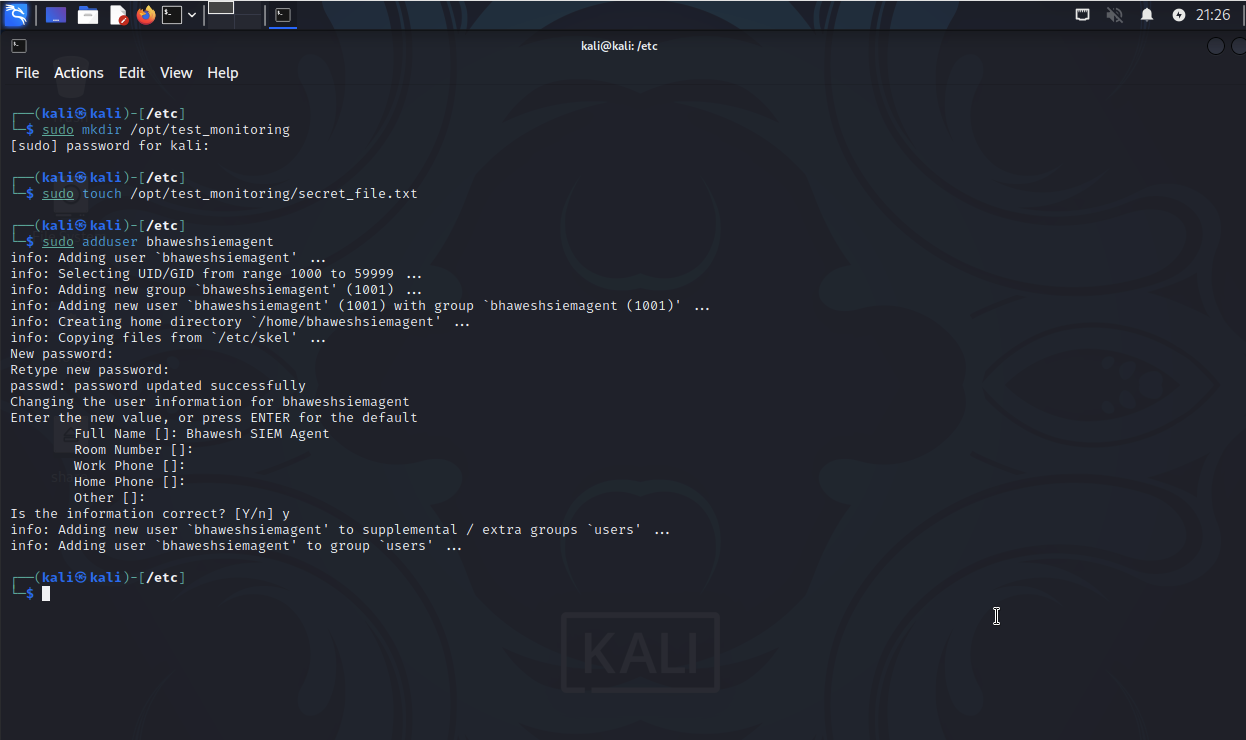
I created a new monitored directory and test file:
sudo mkdir /opt/test_monitoring
sudo touch /opt/test_monitoring/secret_file.txt
I then created a new user account to simulate unauthorized changes:
sudo adduser bhaweshsiemagent
Since I needed this user to have sudo privileges for testing, I added them to the sudoers group:
sudo usermod -aG sudo bhaweshsiemagent
Attempting to Generate an Alert
I switched to the new user and modified the test file:
su - bhaweshsiemagent
echo "This is unauthorized content." | sudo tee -a /opt/test_monitoring/secret_file.txt
When I checked the Wazuh dashboard, I saw numerous events for /etc, but nothing for /opt/test_monitoring/secret_file.txt.
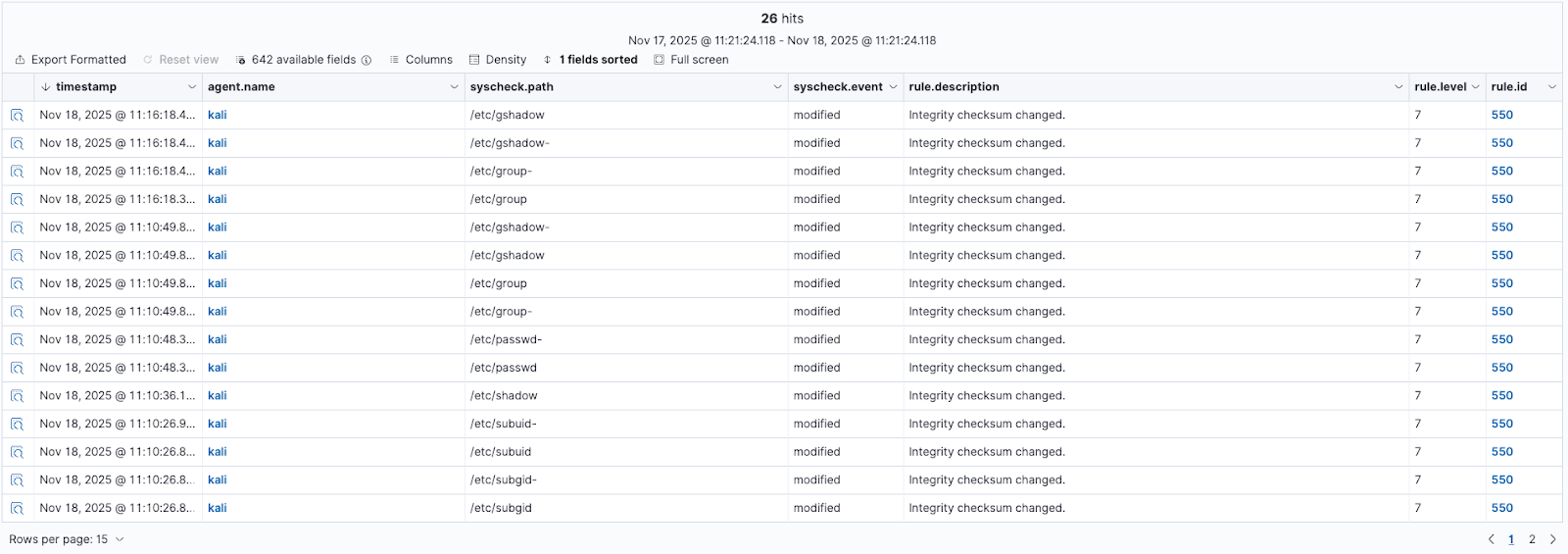
The Problem: When I enabled real-time FIM earlier, I only modified the configuration block for /etc. The new /opt/test_monitoring directory wasn't being monitored at all.
Adding the Custom Directory to FIM
I edited the agent configuration again:
sudo nano /var/ossec/etc/ossec.conf
Inside the <syscheck> section, I added a new directory block:
<directories check_all="yes" report_changes="yes" realtime="yes" whodata="yes">/opt/test_monitoring</directories>
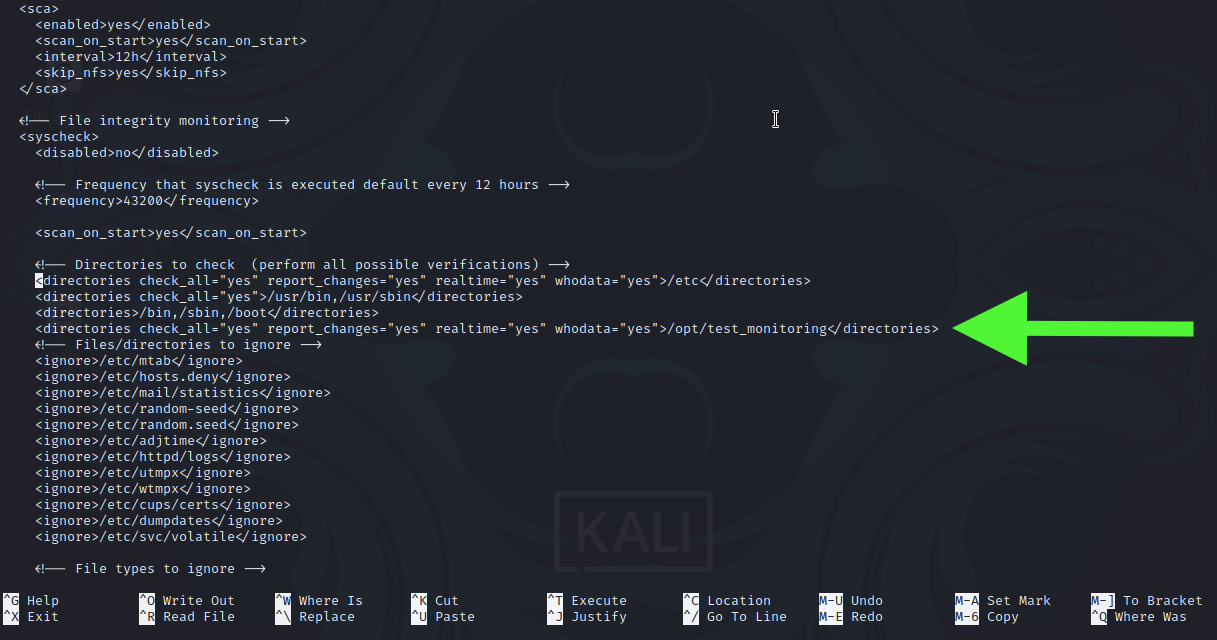
After restarting the agent, I modified the file again:
echo "Bhaweshsiemagent user made a change in the custom directory." | sudo tee -a /opt/test_monitoring/secret_file.txt
This time, the event appeared immediately in the dashboard.
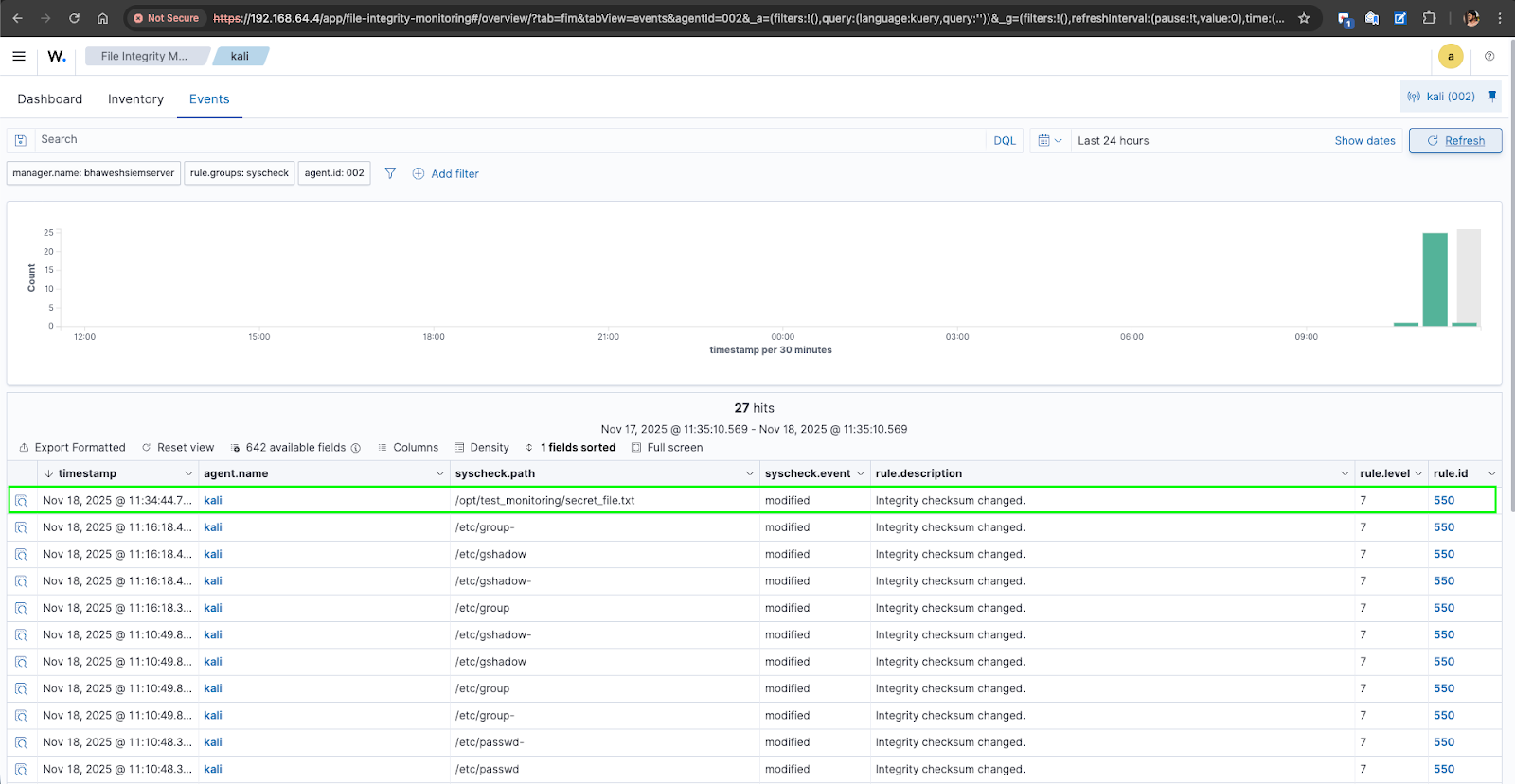
Analyzing the Alert Data
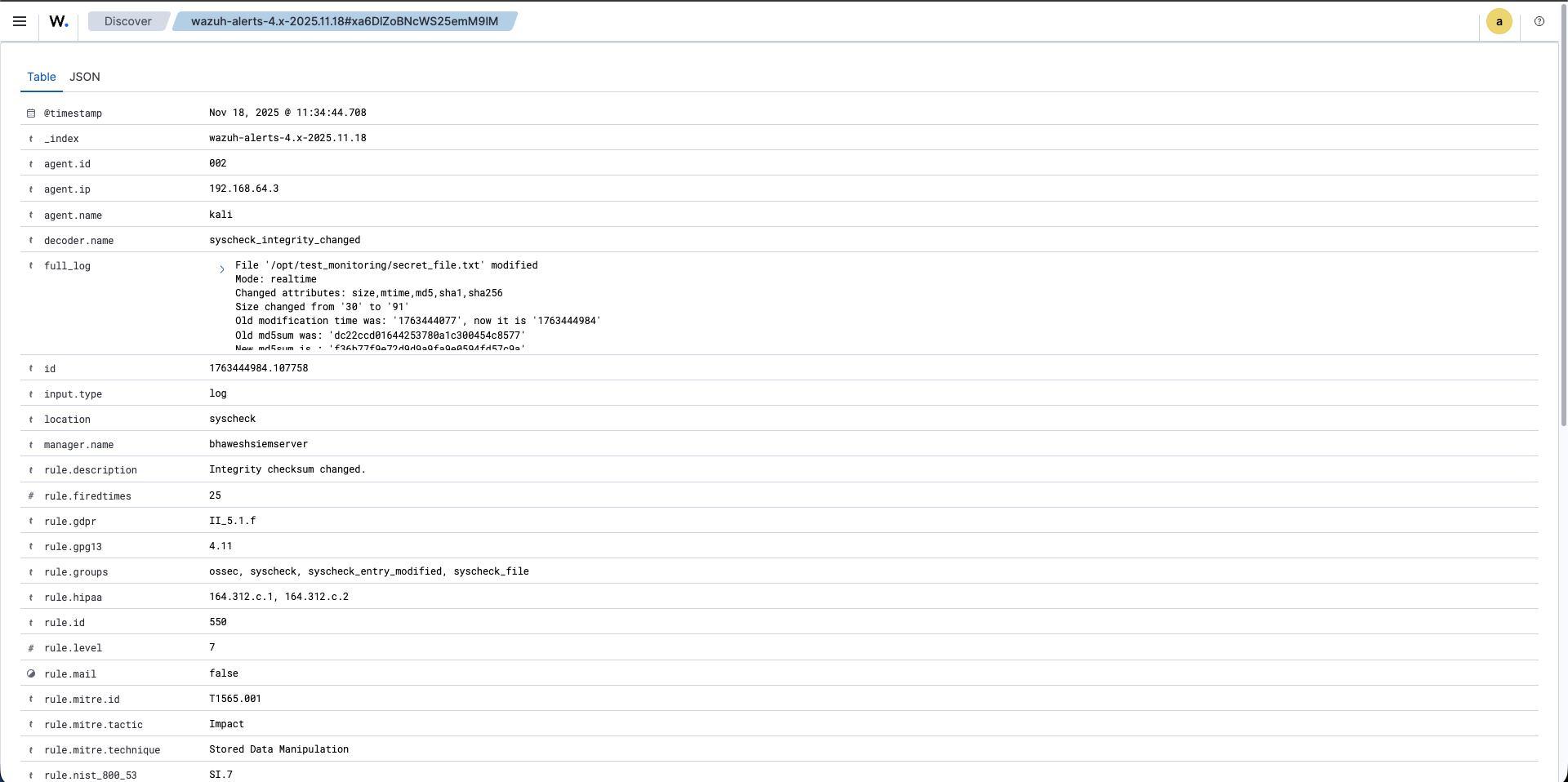
The alert generated for the custom directory change contained comprehensive forensic information. Here's an excerpt from the JSON alert:
{
  "syscheck": {
    "size_before": "30",
    "size_after": "91",
    "md5_before": "dc22ccd01644253780a1c300454c8577",
    "md5_after": "f36b77f9e72d9d9a9fa9e0594fd57c9a",
    "sha256_before": "7846866045518ef54e38abca40fcf840d2a95b0196a8c9baaa20f214bc205579",
    "sha256_after": "36b23ee3e7634b982a444748c9310789d12cd7b144aec90695f60bbcf6b5154d",
    "mode": "realtime",
    "path": "/opt/test_monitoring/secret_file.txt",
    "changed_attributes": [
      "size",
      "mtime",
      "md5",
      "sha1",
      "sha256"
    ],
    "event": "modified",
    "diff": "1a2\n> Bhaweshsiemagent user made a change in the custom directory.\n"
  },
  "rule": {
    "level": 7,
    "description": "Integrity checksum changed.",
    "id": "550",
    "mitre": {
      "technique": ["Stored Data Manipulation"],
      "id": ["T1565.001"],
      "tactic": ["Impact"]
    }
  }
}
Key Observations from the Alert
- Complete Hash History: The alert shows both before and after hash values (MD5, SHA1, SHA256), allowing verification of exactly what changed.
- File Size Tracking: Size increased from 30 to 91 bytes, indicating content addition.
- Real-Time Detection: The
"mode": "realtime"confirms the change was detected immediately via inotify, not during a scheduled scan. - Content Diff: The
difffield shows the exact line that was added, providing immediate context about what changed. - MITRE ATT&CK Mapping: Wazuh automatically maps the event to MITRE technique T1565.001 (Stored Data Manipulation), helping contextualize the activity within the attack lifecycle.
- Severity Level 7: This high severity level ensures the alert is appropriately escalated for investigation.
Key Lessons Learned
1. Agent Communication is Foundational
Before any SIEM functionality works, the agent-manager communication must be rock-solid. Firewall rules, network routing, and key exchange must all be correctly configured.
2. Default FIM Configuration is Conservative
Wazuh's default FIM settings prioritize reducing false positives over detecting every change. For comprehensive monitoring in a homelab or high-security environment, you need to explicitly enable:
report_changes="yes"for content trackingrealtime="yes"for immediate detectionwhodata="yes"for forensic user attribution
3. Explicit Directory Configuration Required
FIM doesn't automatically monitor every directory. Each path must be explicitly listed in the <syscheck> configuration. This is by design—monitoring too many directories can impact agent performance.
4. Testing Methodology Matters
Simply creating files isn't enough to test FIM. You need to:
- Verify the file appears in the inventory
- Confirm real-time monitoring is enabled
- Modify files to trigger checksum changes
- Check both the Events and Inventory tabs
- Review agent logs when troubleshooting
5. Alert Fatigue Prevention
Wazuh's conservative alerting for common system directories makes sense in production environments where administrators routinely modify configuration files. For security monitoring, you need to tune alerting based on your environment's risk profile.
Conclusion
Setting up File Integrity Monitoring in my SIEM homelab proved to be far more complex than I initially anticipated. What began as a simple test evolved into a deep dive into agent communication, firewall configuration, FIM architecture, and alert tuning.
Through systematic debugging, I transformed a non-functional setup into a fully operational FIM system that now provides:
- Real-time detection of file changes
- Comprehensive hash tracking (MD5, SHA1, SHA256)
- User attribution via whodata
- MITRE ATT&CK framework mapping
- Detailed content diffs for modified files
The experience reinforced an important principle: SIEM tools require careful configuration and testing to function effectively. Default settings are often insufficient for comprehensive security monitoring.