Introduction
As I've been deepening my cybersecurity knowledge, I realized the need for hands-on experience with Security Information and Event Management (SIEM) tools. During my Google Cybersecurity Certification course, I was introduced to the critical role SIEM plays in modern security operations—from log analysis and malware detection to threat hunting, file integrity monitoring, MITRE ATT&CK framework implementation, and vulnerability detection.
Organizations typically deploy SIEM solutions in three ways: on-premises infrastructure, cloud-based deployments, or hybrid approaches combining both. For my learning journey, I decided to build an on-premises homelab environment to gain practical experience with SIEM operations.
This writeup documents the first phase of my SIEM homelab setup: installing and configuring the Wazuh manager on an Ubuntu Server running in a virtual environment. This foundation will enable me to perform security monitoring, threat detection, and log analysis in a controlled environment.
Environment Setup
Choosing the Right Virtualization Platform
I chose UTM as my virtualization platform instead of VirtualBox due to its native support for Apple Silicon (M1/M2/M3) chips. This decision was crucial for optimal performance on my Mac.
Installation steps:
- Downloaded and installed UTM from the official website
- Selected Ubuntu Server 22.04 LTS (ARM64 version) as my operating system—specifically the ARM architecture since I'm running on Apple Silicon
Note: If you're using an Intel/AMD-based system, download the AMD64 version of Ubuntu Server instead.
Virtual Machine Configuration
After downloading the Ubuntu Server ISO, I configured my VM with the following considerations:
Initial Setup:
- Created a new virtualization instance in UTM
- Mounted the Ubuntu Server ISO file
- Proceeded through the standard Ubuntu Server installation
Critical Configuration Steps:
- SSH Installation: During the Ubuntu installation process, I ensured SSH server was selected when prompted. This would allow me to manage the server remotely from my host machine's terminal.
- SSH Key Import: When the installer offered to import SSH keys, I configured GitHub integration for seamless authentication. Here's how I set this up:
SSH Key Generation and GitHub Configuration
I generated a new SSH key pair on my local machine:
ssh-keygen -t ed25519 -C "your-email@github.com"
The system prompted me for:
- File location (I used the default: /Users/username/.ssh/id_ed25519)
- Passphrase (I set a secure passphrase for added security)
After generation, I retrieved my public key:
cat ~/.ssh/id_ed25519.pub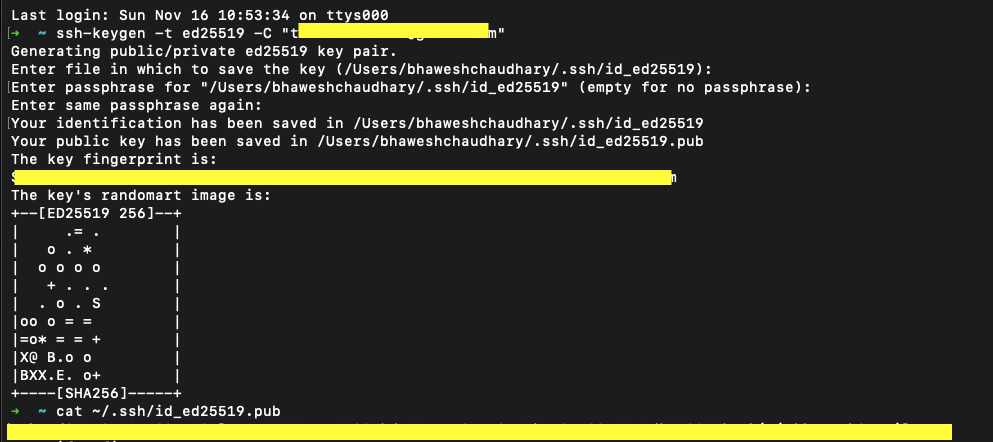
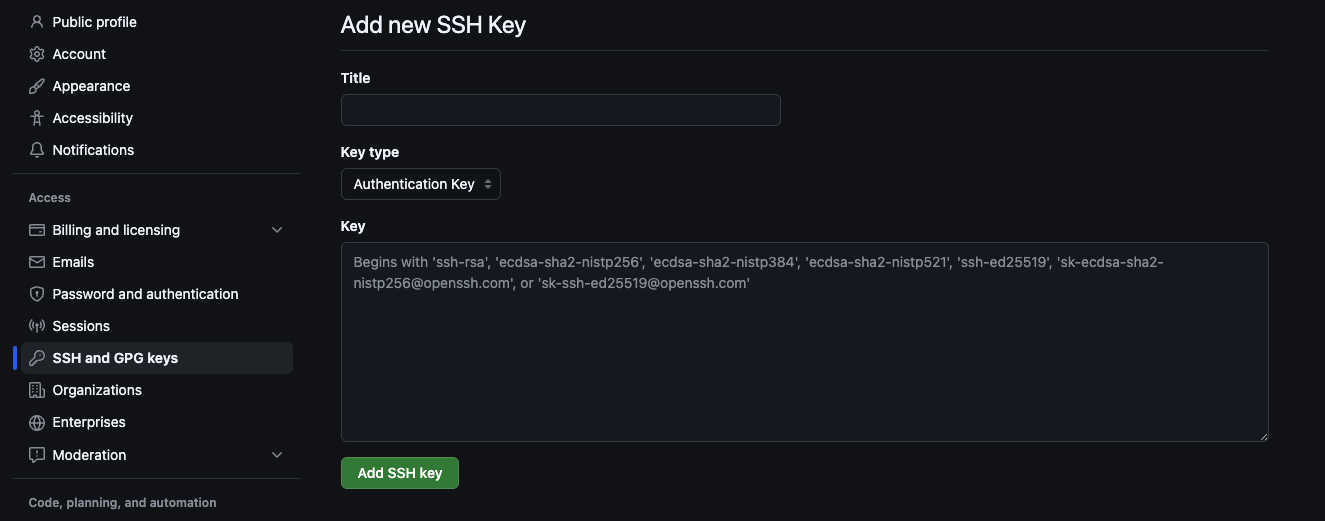
I then added this key to my GitHub account:
- Navigated to GitHub Settings → SSH and GPG Keys
- Clicked "New SSH Key"
- Named it "siemserver"
- Pasted the public key content
During the Ubuntu Server installation, when prompted to import SSH keys, I:
- Selected the GitHub option
- Entered my GitHub username
- The installer automatically imported my configured SSH keys
Post-Installation Configuration
Important: After completing the Ubuntu Server installation, I powered off the VM and removed the ISO file from the VM settings in UTM. This prevents the installer from running again on subsequent boots.
Upon rebooting, I was greeted with a clean terminal interface displaying system information including IP address, last login details, and the command prompt.
Network Configuration
To ensure proper connectivity between my host machine and the Wazuh manager, I configured the VM's network settings to use Bridged Mode. This allows the VM to obtain an IP address on the same network as my host machine.
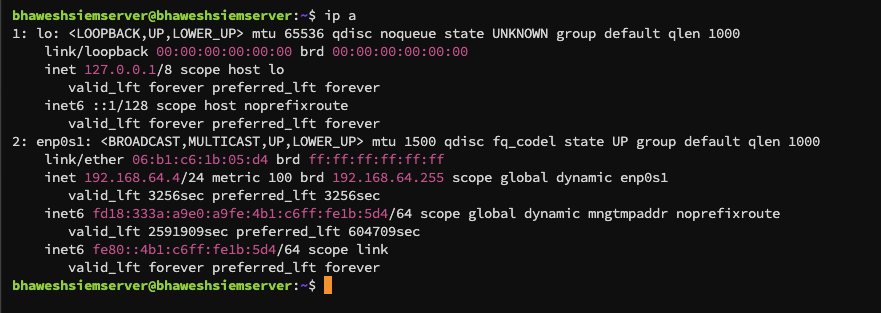
I verified the configuration:
- Host machine IP: Used ifconfig to check my Mac's IP address
- Ubuntu Server IP: Used ip a command in the VM
Both systems showed IP addresses on the same subnet (e.g., 192.168.x.x). The server displayed the IP in CIDR notation (like 192.168.24.2/32), but the actual IP is just the address without the subnet mask notation.
Remote Access via SSH
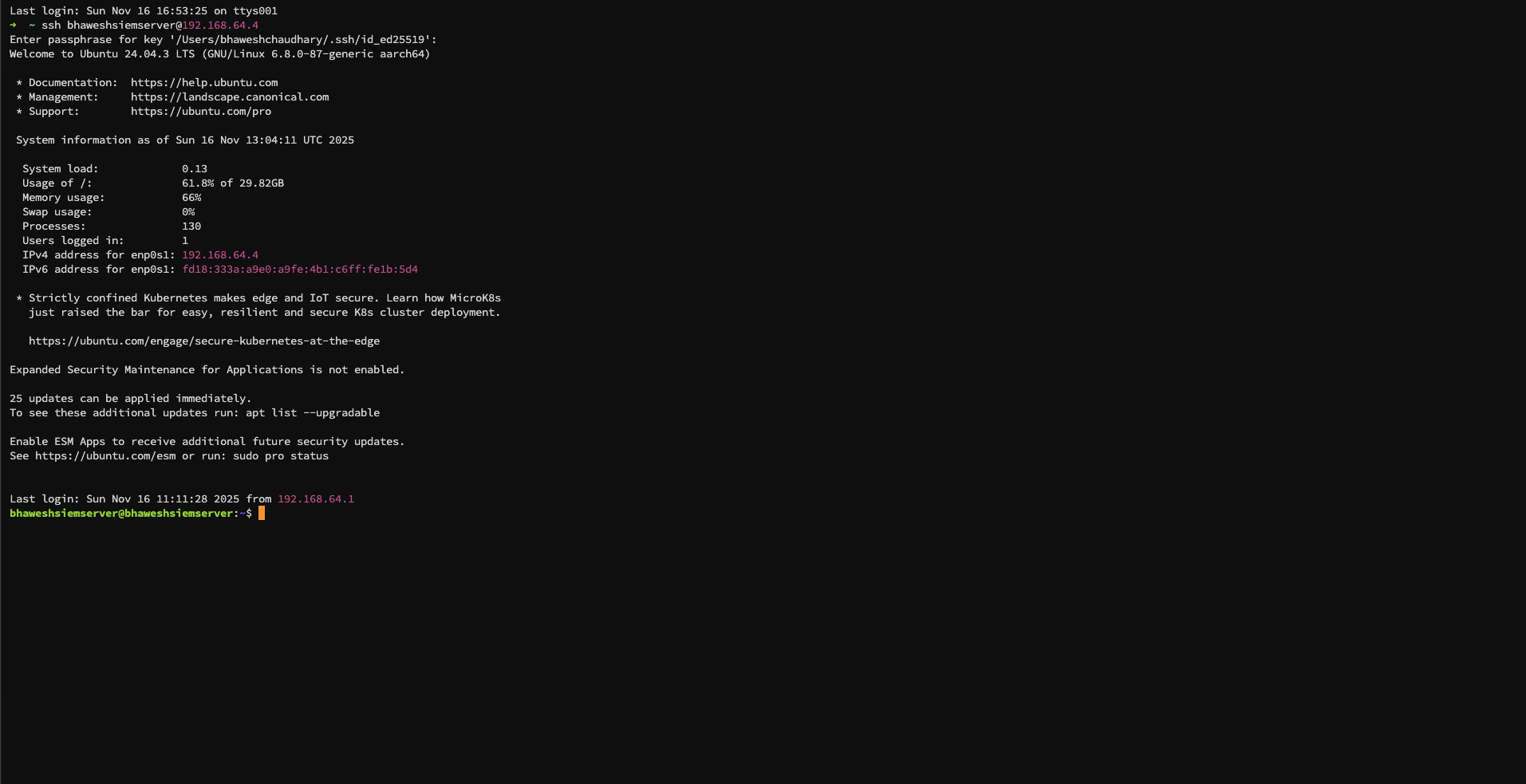
Rather than working directly in the VM console, I established an SSH connection from my Mac's terminal for a more comfortable working environment:
ssh username@<vm-ip-address>
When prompted, I entered the passphrase I had set during SSH key generation. This connection allowed me to manage the server efficiently while keeping my host machine's browser available for accessing the Wazuh web interface.
Wazuh Manager Installation
With the server properly configured and accessible via SSH, I proceeded with the Wazuh installation.
Downloading the Installation Script
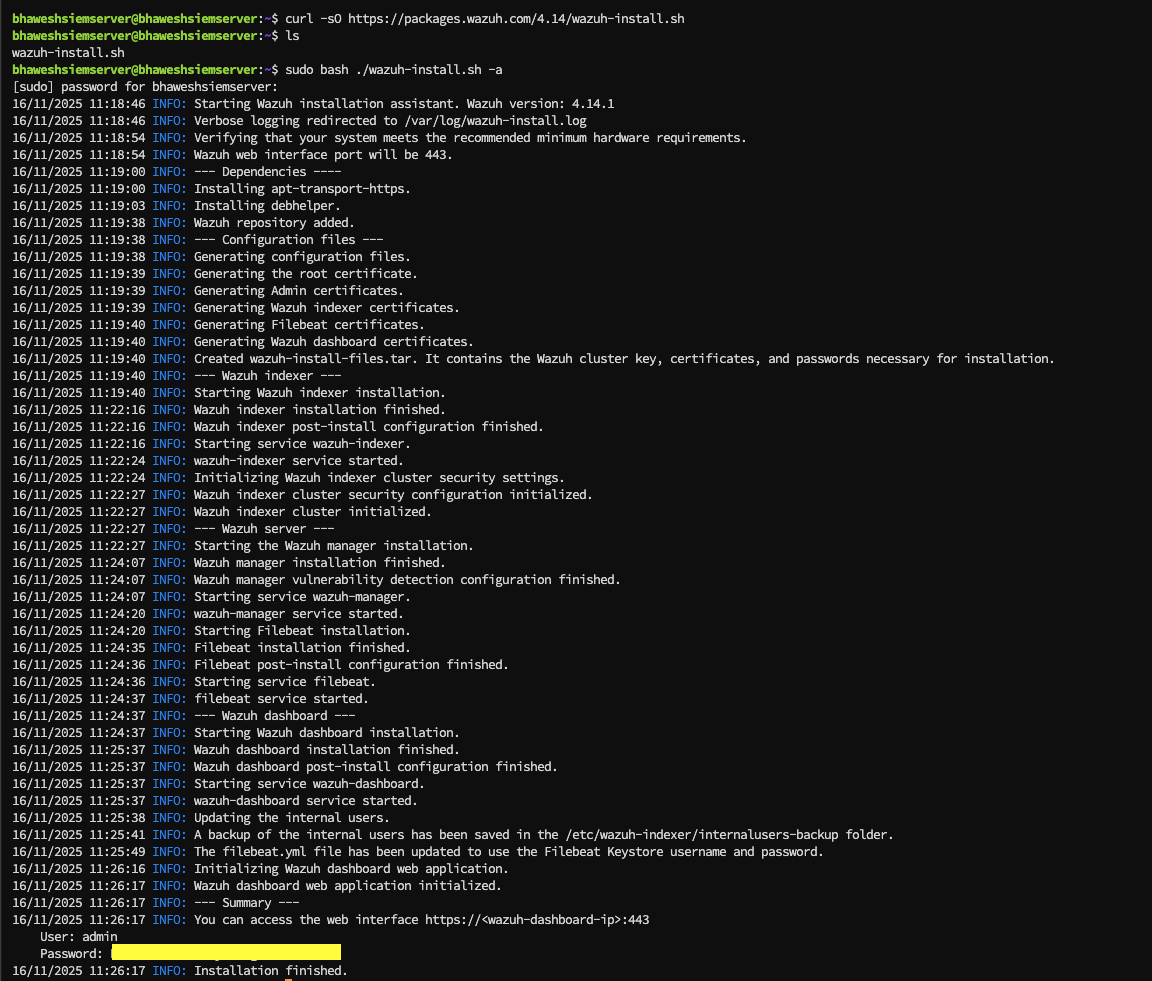
I downloaded the official Wazuh installation script:
curl -sO https://packages.wazuh.com/4.14/wazuh-install.sh
This command retrieved the automated installation script that handles all dependencies and configurations.
Running the Installation
I executed the installation script with the all-in-one option:
sudo bash ./wazuh-install.sh -a
The -a flag instructs the script to install all Wazuh components: the manager, indexer, and dashboard in a single deployment. This is ideal for a homelab environment where all components run on one server.
Installation Completion
The installation process took several minutes to complete. Upon successful installation, the script provided crucial information:
- Web interface URL: https://<vm-ip-address>:443
- Default username: admin
- Generated password: (displayed in the installation summary)
I documented these credentials securely for future access.
Accessing the Wazuh Dashboard
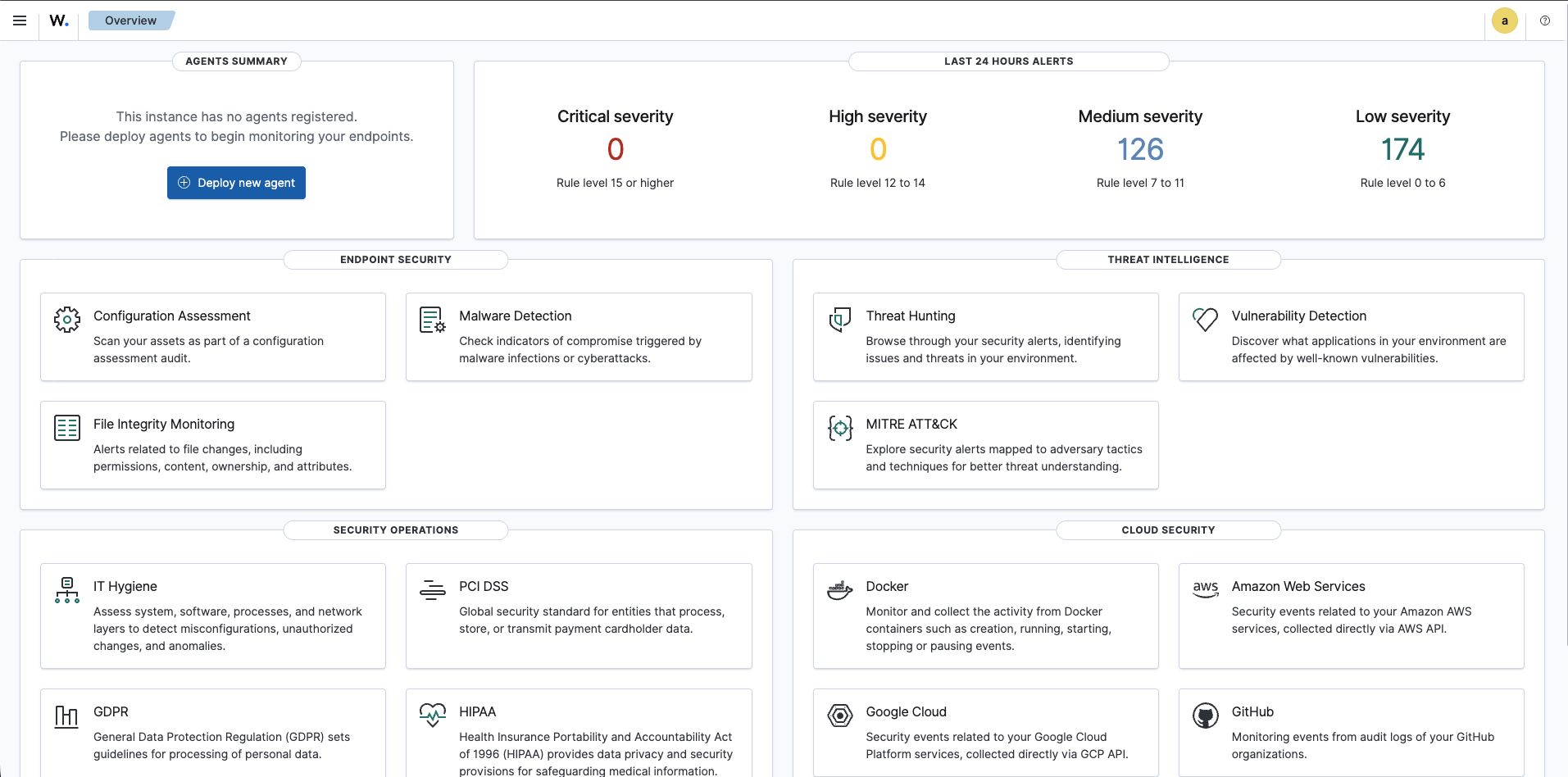
I accessed the Wazuh web interface by navigating to https://<vm-ip-address>:443 in my browser. After accepting the self-signed certificate warning (expected in a lab environment), I logged in using the credentials provided during installation.
The dashboard loaded successfully, confirming that my Wazuh manager was operational and ready for the next phase of configuration.
Conclusion
I successfully completed the foundational setup of my SIEM homelab by:
- Configuring a virtualized Ubuntu Server environment on Apple Silicon
- Implementing secure SSH access with key-based authentication
- Installing and deploying the Wazuh manager
- Verifying web interface accessibility
This infrastructure now serves as the base for my security monitoring operations. The server is running, the manager is accessible, and I'm ready to expand the environment.
Last updated: November 18th 2024